


If you're tired of the end-of-month reporting grind, you're not alone. For many founders and operators, it’s a painful cycle of hunting down data, copying and pasting it into unwieldy spreadsheets, and wrestling with formulas. This manual process doesn't just steal your time—it introduces errors and delivers insights that are already out of date by the time you get them.
Automating your Excel reports is the solution. It means using tools like Power Query, VBA macros, and Power Automate to create a hands-off system that collects, cleans, and presents your data reliably. This guide will show you how to move from manual chaos to an automated workflow that saves time, eliminates errors, and gives you the clarity you need to make insight-led decisions.
Why Manual Excel Reporting Is Holding You Back
If you’re running a growing business, you know the end-of-month reporting drill. It’s a painful cycle of being buried in spreadsheets, manually copying and pasting data from all over the place—your CRM, accounting software, operations logs. It's a time-suck that pulls you and your team away from the strategic work that actually moves the needle.
But this manual process isn't just slow; it's a huge business risk. Every single copy-paste is a chance for a mistake, leaving you with a report you can't fully trust. By the time you’ve wrestled all that data into something usable, it's already old news. You're left making calls based on a rearview mirror look at your performance.
The True Cost of Manual Processes
For a lot of small and medium-sized businesses, this Excel chaos just feels like the cost of doing business. But leaning on manual reporting creates bottlenecks that absolutely kill growth and hide the very insights you’re trying to find.
Think about what happens when you're stuck in this loop:
- Wasted Hours: Your most valuable asset—your time—gets burned on mind-numbing data entry instead of actual analysis and strategy.
- Costly Errors: One misplaced decimal or a broken formula can ripple out, leading to bad financial models and even worse business decisions.
- Delayed Insights: You’re making decisions based on last week's or last month’s data, always a step behind market changes or operational fires.
- Siloed Information: Finance has their numbers, Ops has theirs. Without a single, automated source of truth, getting teams aligned on the same KPIs is a constant battle.
And you're not alone. A staggering 82% of organizations still rely on manual processes glued together with Excel, with some juggling thousands of individual files. For instance, if you're spending hours dragging and dropping shapes to build reports, it might be time to look into quick and data-driven methods for creating organizational charts in Excel—a perfect example of leaving old-school manual work behind. You can dig into the full report from Flowforma.com to see just how widespread this challenge is.
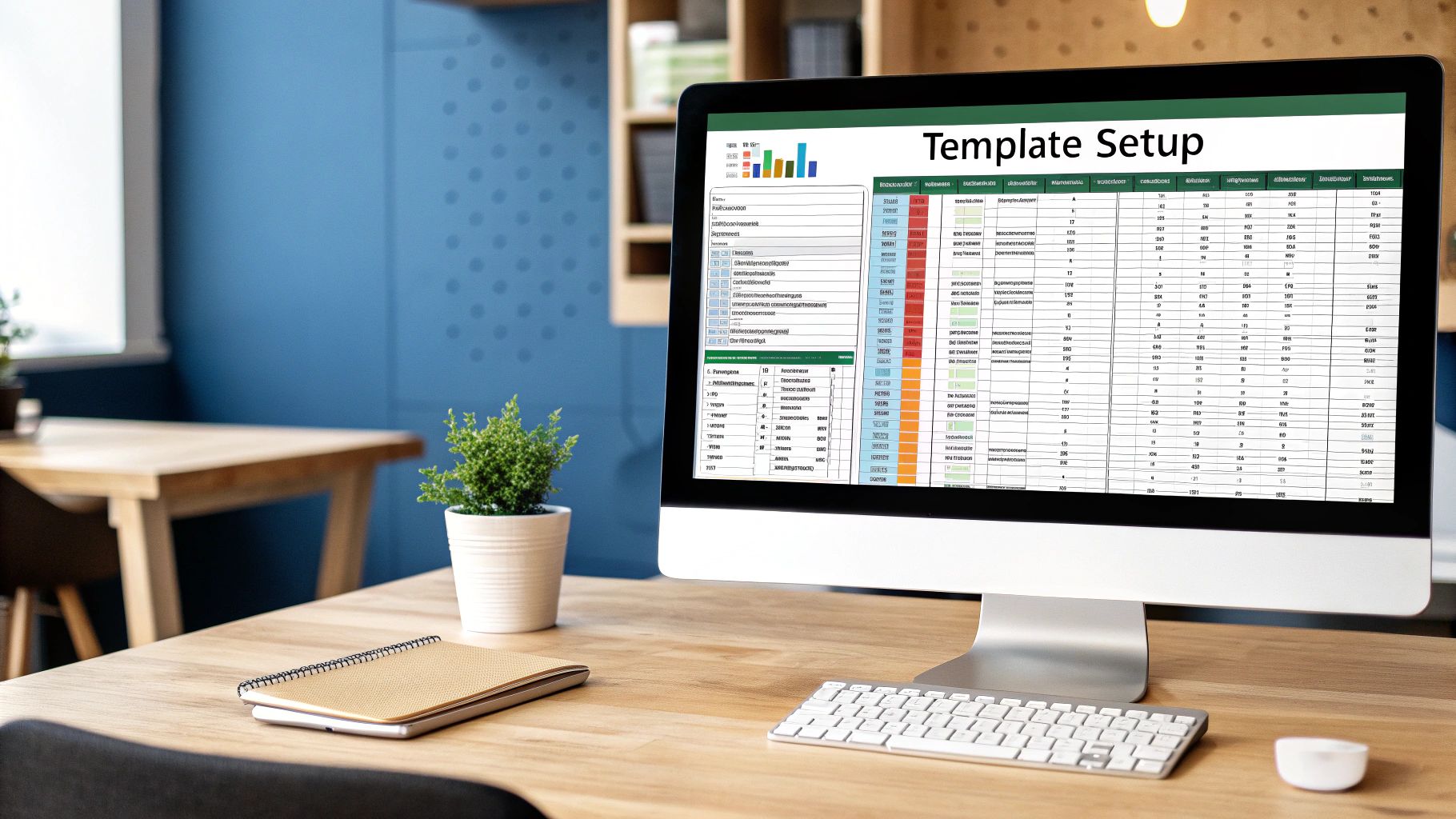
The goal isn’t to ditch Excel. It’s to upgrade it from a manual taskmaster into an automated engine that fuels your business intelligence. When you automate the mundane stuff, you free up your team to focus on insight-driven decisions.
The way forward is to start using the automation tools already at your fingertips, many of which are baked right into Excel. As we'll get into, solutions like Power Query, VBA, and Power Automate can systematically wipe out the manual work that’s bogging you down.
Getting a handle on these tools is the first real step toward building a reporting framework you can actually depend on. You can also explore more foundational ideas in our guide to data analytics for small businesses.
This guide will give you a clear, step-by-step roadmap to reclaim your time and finally build a reporting system that works for you, not against you.
Automating Data Prep with Power Query
Before you start looking at complex code or fancy new software, it's worth getting to know the most powerful automation tool that’s probably already sitting inside your copy of Excel: Power Query. Think of it as your personal data assistant, ready to tackle the most mind-numbing parts of your reporting workflow.
Most people think the bulk of reporting work is building the charts and summaries. The hard truth? Up to 80% of the time is actually spent just getting the data ready—a frustrating cycle of cleaning messy exports, merging files, and fixing formatting.
Power Query was built to solve exactly that. It’s a data transformation engine that records every single step you take to clean up a dataset. Once you've defined these steps, you never have to do them again. For every new report, you just click 'Refresh'.
Your First Automated Workflow: A Real-World Scenario
Let's walk through a common headache for a growing e-commerce business. Every month, you download a CSV sales report from your Shopify store. It's a mess: customer names are crammed into one column, dates are in the wrong format, and there are blank rows everywhere.
Right now, your process is likely a painful, manual grind:
- You open the new CSV and last month's master Excel file.
- You manually delete blank rows and extra columns you don't need.
- You use the "Text to Columns" feature to split the customer's first and last names.
- You create a new column and use a formula like
=DATEVALUE()just to fix the date format. - Finally, you copy and paste this cleaned data into your master sales tracker.
This probably takes a solid 30 minutes, and you have to get it perfect every single month. With Power Query, you do this once, and it becomes a one-click update forever.
This visualization shows the streamlined process of automating your reporting with VBA macros, transforming repetitive tasks into an efficient, hands-off workflow.
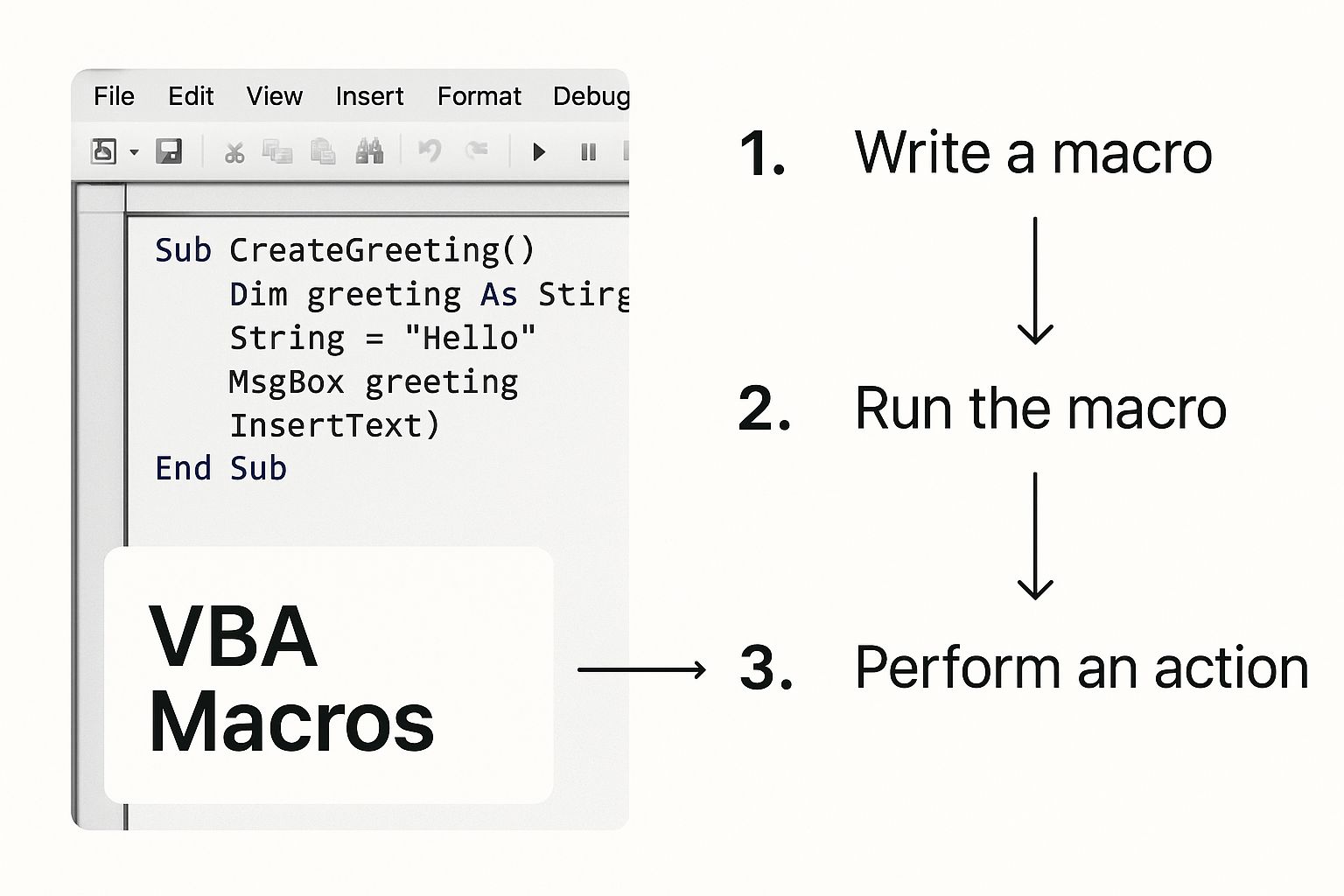
The key takeaway here is that automation tools create a repeatable, error-free system—the absolute foundation of any trustworthy reporting.
Setting Up Your Repeatable Process
Inside Excel, you’d head to the Data tab and look for the Get & Transform Data section. You can connect directly to a folder on your computer where you save your monthly CSV files. This opens up a new window—the Power Query Editor—where you build your cleaning process.
Here’s what you would actually do inside the editor:
- Remove Unwanted Rows and Columns: Just right-click the headers of columns you don't need and select "Remove." You can also use the filter buttons to automatically get rid of blank rows.
- Split Columns: Select the "Customer Name" column, click "Split Column" in the toolbar, and choose "By Delimiter." Tell it to split by the space character, and it instantly creates separate "First Name" and "Last Name" columns for you.
- Transform Data Types: Select the date column, click "Data Type" in the toolbar, and change it from "Text" to "Date." Power Query is smart enough to recognize and convert the format on its own. No formulas needed.
Each of these actions is recorded in the "Applied Steps" pane on the right. This is your automation recipe. Once you're done, you click "Close & Load," and a perfectly formatted table appears in your Excel sheet.
Next month, you just drop the new sales CSV into that same folder. Then, open your master Excel file, right-click the data table, and hit Refresh. Power Query automatically runs through all your saved steps and appends the new, clean data. Your 30-minute chore just became a 5-second task.
Getting this process down is the first critical piece of building a reliable reporting system. For those interested in the broader architecture of these systems, you can learn more about how to build a modern data pipeline in our detailed guide.
This is the foundational skill for any serious report automation in Excel. Mastering this simple workflow eliminates the single biggest source of errors and wasted time: manual data manipulation. It ensures your data is consistent, clean, and ready for analysis every single time.
Ultimately, Power Query turns Excel from a static spreadsheet into a dynamic tool that's directly connected to your source data. It's the first and most important step toward creating a reporting system that gives you back your time and delivers insights you can actually trust.
Automating Repetitive Tasks with VBA Macros
If Power Query is your champion for cleaning and wrangling data, then Visual Basic for Applications (VBA) is the tool that automates what you do with that pristine data. Have you ever wished for a magic button that could perfectly format your weekly report, save it as a PDF, and then email it to your team? That’s exactly what VBA brings to the table.
A lot of people hear the word "code" and their eyes glaze over. But you don't need to be a software developer to get massive value out of VBA. Its real power is in taking over those small, repetitive, click-heavy tasks that drain your day and open the door for human error.

This isn't just about recording a basic macro and calling it a day. We're talking about using targeted little scripts to solve common reporting headaches, making sure every report you send out is consistent, professional, and always on time.
A Practical Example: Automating Report Distribution
Think about your typical Friday afternoon. You've already used Power Query to pull in the latest sales numbers. Now comes the manual grind: formatting the report, saving a PDF version for the leadership team, and firing off the same email you write every single week. That's a dozen or more clicks, navigating through save menus, and hoping you don't forget to attach the file.
A simple VBA macro can crush this entire workflow into a single click. The script is just a precise sequence of instructions that you write once:
- Apply Formatting: It can automatically resize columns, apply your company's color scheme and fonts, and drop in a title with the current date.
- Convert to PDF: It will save a specific worksheet as a PDF, naming it dynamically so it's always organized (e.g., "Weekly Sales Report – 2024-10-25.pdf").
- Generate and Send Email: The script can then open a new email in Outlook, attach that new PDF, and fill in the "To," "Subject," and body for you.
Suddenly, the report looks identical every time, and the risk of sending the wrong file or forgetting the attachment completely disappears.
Getting Started with a Copy-and-Paste Script
The best part? You don’t have to write this from scratch. The internet is overflowing with ready-made scripts you can adapt. The only trick is understanding the basic structure so you can tweak it to fit your exact needs.
Here’s a simplified snippet that shows how to save a worksheet as a PDF. The comments—those are the lines starting with an apostrophe—explain what each part is doing.
Sub SaveSheetAsPDF()
    ' Define variables for the file path and name
    Dim FilePath As String
    Dim FileName As String

    ' Set the folder path where the PDF will be saved
    FilePath = "C:\Users\YourName\Documents\Reports\"

    ' Create a dynamic file name using the sheet name and today's date
    FileName = ActiveSheet.Name & " - " & Format(Date, "YYYY-MM-DD") & ".pdf"

    ' Export the active sheet as a PDF
    ActiveSheet.ExportAsFixedFormat Type:=xlTypePDF, FileName:=FilePath & FileName, Quality:=xlQualityStandard

    ' Display a message box to confirm completion
    MsgBox "Report saved as PDF at: " & FilePath & FileName
End Sub
To get this working, you’d open the VBA Editor in Excel (Alt + F11), insert a new module, and just paste the code in. The only thing you must change is the FilePath to a real folder on your computer. Assign this macro to a button on your worksheet, and boom—one-click PDF generation is yours.
By systemizing these "final-mile" reporting tasks, you’re not just saving time. You're building a more reliable and professional workflow. It’s the kind of operational polish that lets you focus on the insights in the data, not the mechanics of sharing it.
VBA is a logical next step once you've gotten a handle on data preparation. It takes a little more setup than Power Query, but the hours you get back from eliminating admin tasks are well worth it. Beyond just Excel, you can apply the same principles for how to automate repetitive tasks across all the software you use.
Feeling a bit overwhelmed by the thought of code? You don't have to become a VBA expert overnight. At Vizule, we help founders pinpoint the highest-impact automation opportunities in their reporting cycles. Book your free BI consultation, and let's map out a plan to get rid of your most tedious tasks for good.
Connecting Excel to Cloud Apps with Power Automate
So, Power Query has your data prep locked down, and VBA is handling all the complex tasks inside your spreadsheet. But what about everything that happens outside of Excel? This is where we get into true, end-to-end automation. What if your reporting process could kick itself off based on events happening in your other business apps?
This is where Power Automate steps in.
Think of it as the digital glue connecting all your different software and services. It’s Microsoft's cloud-based tool for building automated workflows (which it calls 'flows') that link your entire tech stack together, with Excel often sitting right at the heart of the operation. In short, it’s how you stop being the middleman who manually moves data from one place to another.
Building Workflows That Run on Their Own
For most small and mid-sized businesses, the reporting process doesn't actually start in Excel. It starts with an action somewhere else—a new deal logged in your CRM, an invoice marked 'paid' in your accounting software, or a customer submitting a form. Power Automate is always listening for these triggers and then executes a series of actions you've already defined.
Here's a classic scenario for a sales team:
- The Trigger: A sales rep marks a deal as 'Closed-Won' in your CRM, maybe Salesforce or HubSpot.
- The Flow: Power Automate instantly picks up on this change.
- The Action: It grabs the important details—client name, deal value, close date—and automatically adds them as a new row to a master sales tracker Excel file living in SharePoint or OneDrive.
Just like that, you've eliminated double data entry and guaranteed your sales report is always accurate. No more waiting until Friday for someone to manually update the numbers just to see how the week is going.
This isn't just a niche trick; it's where the business world is headed. The industrial automation market, which is a great indicator for data-heavy workflows like this, is projected to hit USD 226.8 billion in 2025. This kind of growth underscores how critical it is to get a handle on your data flows. In fact, over 90% of workers say automation tools make them more productive. You can dig deeper into these industry-wide automation insights from Thunderbit.com.
An Example of a Cloud-Based Automation Flow
Let’s take that sales reporting idea and build it out. We can create a more advanced flow that doesn’t just collect the data but also distributes the finished report for you.
Power Automate has a simple, visual interface where you connect different app triggers and actions to build your flow, as you can see in this screenshot from Microsoft.
Each block represents a step in the process. It's designed so that non-technical users can orchestrate some pretty complex workflows without touching a single line of code.
Here's how you could build a killer daily reporting flow:
- The Trigger: Set a scheduled trigger to run every day at 5 PM sharp.
- Action 1: The flow tells your master Excel file—the one with your Power Query connections—to refresh its data, pulling in the latest numbers from all your sources.
- Action 2: Once the refresh is complete, it takes a screenshot of a specific chart or table in your dashboard worksheet.
- Action 3: Finally, it posts that screenshot directly into your company's Microsoft Teams channel with a quick message: "Here's today's end-of-day sales summary."
This is the leap from just automating a spreadsheet to automating an entire business process. You're no longer just saving time on data entry; you're building a system that proactively delivers vital information to the right people, at the right time, every single day.
Power Automate is the bridge that turns your Excel file from a static document into a living, breathing part of your business operations. It’s the engine that can fetch data, update your models, and then share the results without you lifting a finger. For founders and operators, this is how you get real-time visibility and create an information pipeline that scales as your business grows.
To see how these concepts can be applied across different departments, check out our guide on other powerful business process automation examples.
Ready to connect your apps and build a reporting system that runs itself? See how Vizule can help automate your reporting stack and create a seamless flow of information across your entire business.
Building Interactive Dashboards with Power BI
Getting your data pipeline automated is a massive win, but that's only half the battle. You’ve got clean, reliable data ready to go—now what? How do you actually present it in a way that sparks immediate, clear decisions? The endgame isn't just another perfectly formatted Excel file sitting in an inbox; it's a dynamic, interactive dashboard that tells a story.
Let's be real: static Excel charts have a ceiling. They give you a single, flat snapshot of your data. If a leader sees a spike in sales, they can't just click on it to see which products or regions were the heroes. Answering any follow-up questions means diving back into the raw data, wrestling with another pivot table, and sending out yet another report. It's a painful, slow loop.
This is exactly where a dedicated BI tool like Power BI completely changes the game.
From Static Reports to Dynamic Insights
Power BI is built from the ground up to turn your data into a living, explorable experience. And the best part? All that hard work you put into cleaning and transforming data in Power Query is directly transferable. In fact, Power Query is the engine running inside Power BI, so you’re already well on your way.
You can take the exact same data pipeline you built for your Excel report and just point it at a Power BI dashboard instead. Rather than your process ending with a static table, you’ll be creating a collection of visuals that are all interconnected.
Here’s what that really unlocks for your team:
- Drill-Down Capabilities: See a top-level KPI like total revenue? Just click on it. Instantly, you can see that number broken down by salesperson, product category, or marketing channel. No more follow-up requests.
- Self-Service Analytics: You can finally empower your team to answer their own questions. Instead of pinging you for a new report, they can filter the dashboard by date, region, or any other variable to get the insights they need on the spot.
- A Single Source of Truth: Publish one central, trusted dashboard that everyone in the company uses. This puts an end to the chaos of multiple "versions of the truth" floating around in different spreadsheets.
This shift isn't just a small upgrade; it's a fundamental change in how businesses use their information. We're seeing a huge move toward Intelligent Process Automation (IPA), which blends AI with automation tools to completely reshape reporting. The IPA market is projected to explode from USD 18.26 billion in 2025 to USD 47.18 billion by 2033. This isn't just noise; it’s a clear signal that businesses are ditching old methods for smarter, integrated data systems. Low-code platforms like Power BI are leading this charge, letting teams build incredibly sophisticated reporting without needing to be developers. You can dig deeper into these market trends on intelligent automation from Straits Research.
Connecting Finance and Operations
For founders and operators, this is where the magic really happens. A Power BI dashboard finally gives you the power to connect departments that have been operating in silos for years. Imagine having a single screen where you can see:
- Sales Performance: Pulled straight from your CRM.
- Marketing Spend: Fed in from your Google Ads and social media accounts.
- Operational Costs: Synced with your accounting software.
- Financial Projections: Connected to your cash flow forecasting model.
When you bring these datasets together and visualize them side-by-side, you finally get the complete picture. You can see precisely how marketing spend is impacting sales, how sales velocity affects your cash flow, and how operational costs are hitting your profitability—all in real-time.
A great BI dashboard doesn't just show you what happened; it helps you understand why it happened. It connects the dots between different parts of the business, turning raw data into a clear narrative that guides your next strategic move.
This is the leap from backward-looking reporting to forward-looking analysis. It’s how you graduate from running your business on gut feel to making truly insight-led decisions that drive real, sustainable growth.
At Vizule, our entire mission is built around helping SMBs make this crucial transition. We specialize in transforming messy, disconnected spreadsheets into a unified source of truth in Power BI. We build the data pipelines, design the intuitive dashboards, and empower your team to use them effectively.
Ready to build a reporting system that delivers real insight and finally connects your financial and operational data? Book a free BI consultation to see how we can help you get started.
Your Top Questions Answered
When you're diving into report automation, you're bound to have questions. As a founder or operator, you don’t just need answers—you need practical advice that makes sense for your business right now. Let's tackle some of the most common questions we hear from clients who are just starting out.
Which Excel Automation Method Is Best For A Beginner?
If you're new to this, start with Power Query. Hands down, it's the best entry point.
Power Query is already built into modern versions of Excel, and its visual, click-based interface means you can get powerful results without touching a single line of code. It’s specifically designed to crush the most tedious part of reporting: cleaning up, combining, and prepping your data. For most small and medium-sized businesses, it will solve about 80% of your daily data headaches.
Can I Automate Reports That Use Data From Cloud Apps?
You absolutely can—and you absolutely should. This is a must-have for any modern business. Power Query comes with a whole library of built-in connectors for popular services like Salesforce or QuickBooks, letting you pipe data directly into your Excel workbook. No more manual CSV downloads.
For workflows that involve multiple cloud apps talking to each other, Power Automate is the perfect next step. It can trigger an action in Excel based on something happening in another app—like a new deal closing in your CRM. This creates a truly connected, hands-off reporting system.
The single biggest risk in report automation isn’t the tool; it's automating a broken process. It’s the classic 'garbage in, garbage out' scenario. Automation makes things faster, but it won’t magically fix bad data or a messy workflow.
This is exactly why building a solid foundation in Power Query first is so critical. It lets you embed your data cleaning and validation rules right into the process itself. You ensure the numbers feeding your final report are clean, accurate, and trustworthy from the very start. A quick chat with an expert can help you nail these foundational quality checks from day one, saving you a world of pain later.
When Should I Move From Excel To A BI Tool Like Power BI?
You'll know it's time to graduate from Excel to a business intelligence tool like Power BI when you start hitting a few common walls. The most obvious one? Your Excel files are getting massive, slow, and clunky.
The other major sign is when you need interactive, self-service analytics. If you find yourself emailing out ten different versions of the same report or you can't quickly answer follow-up questions without building a new file from scratch, a BI tool is your next logical move.
And the best part? All those Power Query skills you’ve been building are 100% transferable to Power BI.
Tired of answering the same questions with outdated reports? At Vizule, we help you build a reporting system that provides the clear, trusted answers you need to lead with confidence. Connect with us to design your financial dashboard in Power BI and turn your data into your most valuable asset.
